
Autor: NTA Time: 2026-10-01 12:20:51 Click:
A practical auction workflow for linking a vehicle's check-in condition report to its SKEYE 360 presentation: identifier and date checks, a visible condition note, retained source images, rules for stale media, and mobile and desktop review.
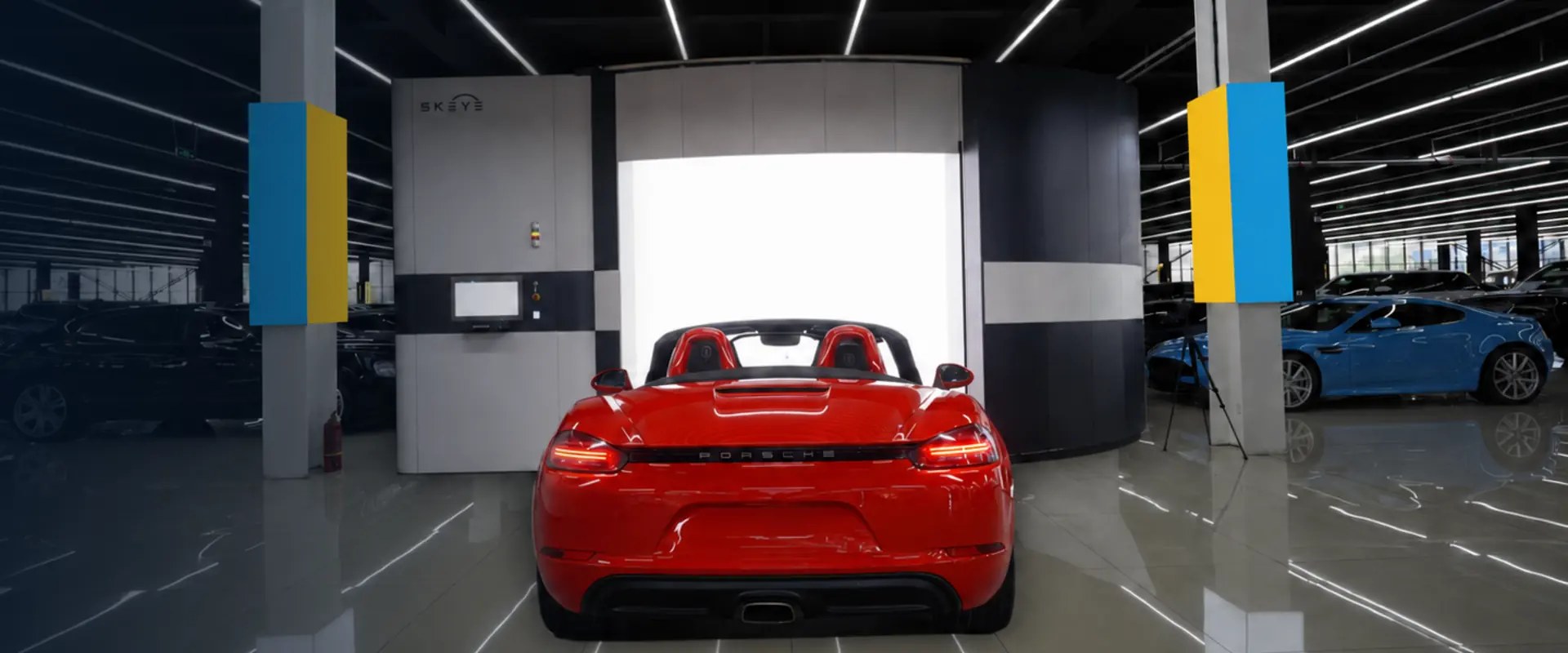
An auction lot carries two kinds of evidence about one car: what the inspection found at check-in, and what the online presentation shows to bidders. When the two are captured separately, they can drift apart. A condition report could list a dented rear door while the 360 view was taken before the dent was recorded. Media from a vehicle's earlier consignment could stay attached to its record. A bumper note could sit in the yard system while the catalog shows only the exterior spin. These risks arise wherever two capture points exist without a step that checks whether they describe the same vehicle and the same check-in. This article sets out which Elscope Vision tools produce which evidence, and a record-linking procedure that ties them together before a lot is published. For the presentation side of an auction lot, use the SKEYE used-car scanner. According to the official SKEYE page, it takes interior and exterior photos automatically and uses high-resolution images to build a 360° display of the vehicle. The online view works on mobile, desktop, and tablet, viewers can zoom with a mouse, vehicle information syncs to the cloud, and the scanner supports report generation and sharing. For auction staff, that means the automatic photos can serve as the lot's presentation set, viewable on the devices bidders use and shareable from the cloud rather than assembled by hand from separate photo folders. SKEYE is the presentation layer. Body condition findings come from an inspection you configure alongside it, either the Dragate arch scanner or the passenger-car 4-in-1 solution. The connection between them is a lot record stating that this 360 set and this condition report belong to the same vehicle, from the same check-in event, and that the catalog disclosure matches the report. Official used-car scanner product image showing the vehicle imaging arrangement. Keep each capability attached to the product that provides it, so reviewers know which source to trust. When the report and the 360 view disagree, neither record automatically prevails. A reviewer checks the source imagery behind each and, where needed, the physical car, then records which finding is confirmed and why. These steps cover record handling in the auction's own systems. They are not settings that ship inside SKEYE or the inspection products. 1. Confirm identity at the gate. Read the VIN from the vehicle and match it to the consignment paperwork before either capture. Record the lot number and sale date at the same time. 2. Capture both evidence sets in one check-in event. Run the condition inspection and the SKEYE capture on the same day, preferably back to back, and give that pass a single event ID. 3. Associate the records explicitly. Create one lot record that references the inspection report ID and the 360 set ID, each stamped with the VIN, event ID, and capture date. Where your yard reuses stock numbers across consignments, a stock number alone is too weak a link. 4. Write the condition note from the report. A reviewer turns the report's findings into a short buyer-facing note listing panel, damage type, and severity, and places it next to the 360 viewer on the lot page where bidders will see it. 5. Retain source images independently. Archive the original inspection images and the SKEYE capture under the lot record, separate from the catalog copy. If a buyer disputes a disclosure, you can check what was captured, not just what was published. 6. Hold the lot for review. Nothing publishes until a named reviewer has checked the page on two devices and signed off. Field names can follow the existing yard or auction system; what matters is what each one captures. • The VIN on the media differs from the VIN on the report. Block the lot. Recapture or re-associate the correct set. Never relabel files to make the identifiers match. • The 360 set predates the report or comes from an earlier sale. Treat it as stale. A re-consigned car may have picked up damage since its last spin, so capture it again in the current event. • The car changed after capture. If it was damaged in the yard or repaired before sale, rerun the affected capture, update the note, and log the reason on the record. • The 360 view shows damage the report doesn't mention. Have a reviewer check the source imagery and the car itself. If the damage is confirmed, record it as a reviewer observation with the reviewer's name and date, add it to the condition note, and rerun the inspection if your procedure calls for it. Because the SKEYE online view runs on mobile, desktop, and tablet, the reviewer should look at the lot the way bidders will, on at least a phone and a desktop. Official vehicle-presentation image illustrating exterior views for an online listing. On the desktop, use mouse zoom to find each panel named in the condition note and confirm the 360 view shows the area clearly. On the phone, check that the condition note is visible near the viewer without scrolling past unrelated content, that the viewer loads, and that the first frame shows the right car. On both, confirm the VIN and lot number on the page match the lot record. Log the devices used in the approval field, then publish. How the 360 view and the condition report reach your online catalog is an implementation decision, not a given. The 4-in-1 used-car page lists API integration and on-premises deployment. Whether that connects to your listing platform depends on the fields, authentication, workflow, and project scope you agree on. Before go-live, settle which system owns the lot record, how report and media IDs pass between systems, and who holds publish rights. Pilot the procedure on a single check-in lane for one sale cycle. Run SKEYE and your chosen inspection configuration side by side, keep the lot record by hand if necessary, and track how often the review step catches a mismatch. That tells you which links to automate first. To scope SKEYE and an inspection setup for your auction, contact Elscope Vision.Present the Auction Vehicle with SKEYE
What Each Piece of Evidence Comes From
Tool What it produces Source SKEYE used-car scanner Automatic interior and exterior photos, high-resolution 360° display, online view on mobile, desktop, and tablet, cloud sync, report sharing SKEYE page Dragate arch scanner AI detection of scratches, dents, and other body damage from 17 cameras; a report showing the total number, location, and severity of defects on each vehicle surface Dragate page 4-in-1 solution for used cars AI analysis of body, tires, and underbody, compiled into a standardized digital inspection report 4-in-1 used-car page A Check-In-to-Catalog Procedure for Auction Teams
Fields Worth Keeping on the Lot Record
Field Why it earns a place Verified VIN The key both evidence sets must share Lot number and sale date Ties evidence to one sale, not the vehicle's history Check-in event ID Documents that both captures were associated with the same check-in Inspection report ID and capture date Identifies which findings the note is based on 360 set ID and capture date Identifies which presentation bidders saw Condition note text and author Shows what was disclosed and who wrote it Source image archive location Lets staff retrieve originals in a dispute Publish approval: reviewer, time, devices checked Records that pre-publication review happened When the Media and the Report Don't Agree
Reviewing the Lot on a Phone and a Desktop

Agree the Delivery Path With Your Platform Early
Where to Start
Let's Discuss Your Inspection Needs
We offer professional consultation services
Address : NO. 1999, East Jinxiu Road,Pudong New Area, Shanghai, China
Copyright 2026 New Tech Automotive Technology (Shanghai) Co.,Ltd. All Rights Reserved Information Security
Follow Us


Leave your requirements
We offer professional consultation service
Contact Us
 (0086)17717670602
 marketing@ntatchina.com
 8617717670602
Follow Us
Address : NO. 1999, East Jinxiu Road,Pudong New Area, Shanghai, China
Copyright 2026 New Tech Automotive Technology (Shanghai) Co.,Ltd. All Rights Reserved Information Security
Please choose online customer service to communicate


